Aseprite Extension
API
Provider setup and generation options for external APIs.
What Is This?
The API tab lets you generate images through external cloud API providers instead of the local ComfyUI server. This means you do not need a GPU, ComfyUI running, or any models installed locally — the generation happens on the provider’s infrastructure.
Use this tab when:
- You don’t have a powerful enough GPU to run local generation.
- You want quick results without managing local models.
- You are working on a machine without the full local setup.
Currently supported providers:
- PixelLab — specialized for pixel art generation.
- Nano Banana — general-purpose image generation API.
- OpenAI — image generation via OpenAI’s API.
- Grok — image generation via xAI’s Grok API.
- RetroDiffusion — specialized for retro and pixel art styles.
Quick Start
- Choose a Provider from the dropdown.
- Paste your API Key for that provider.
- Write a Prompt.
- Set any provider-specific options.
- Click Generate API Image.
Your API key and provider settings are saved in plugin preferences and will be there next time you open the plugin.
Provider: PixelLab
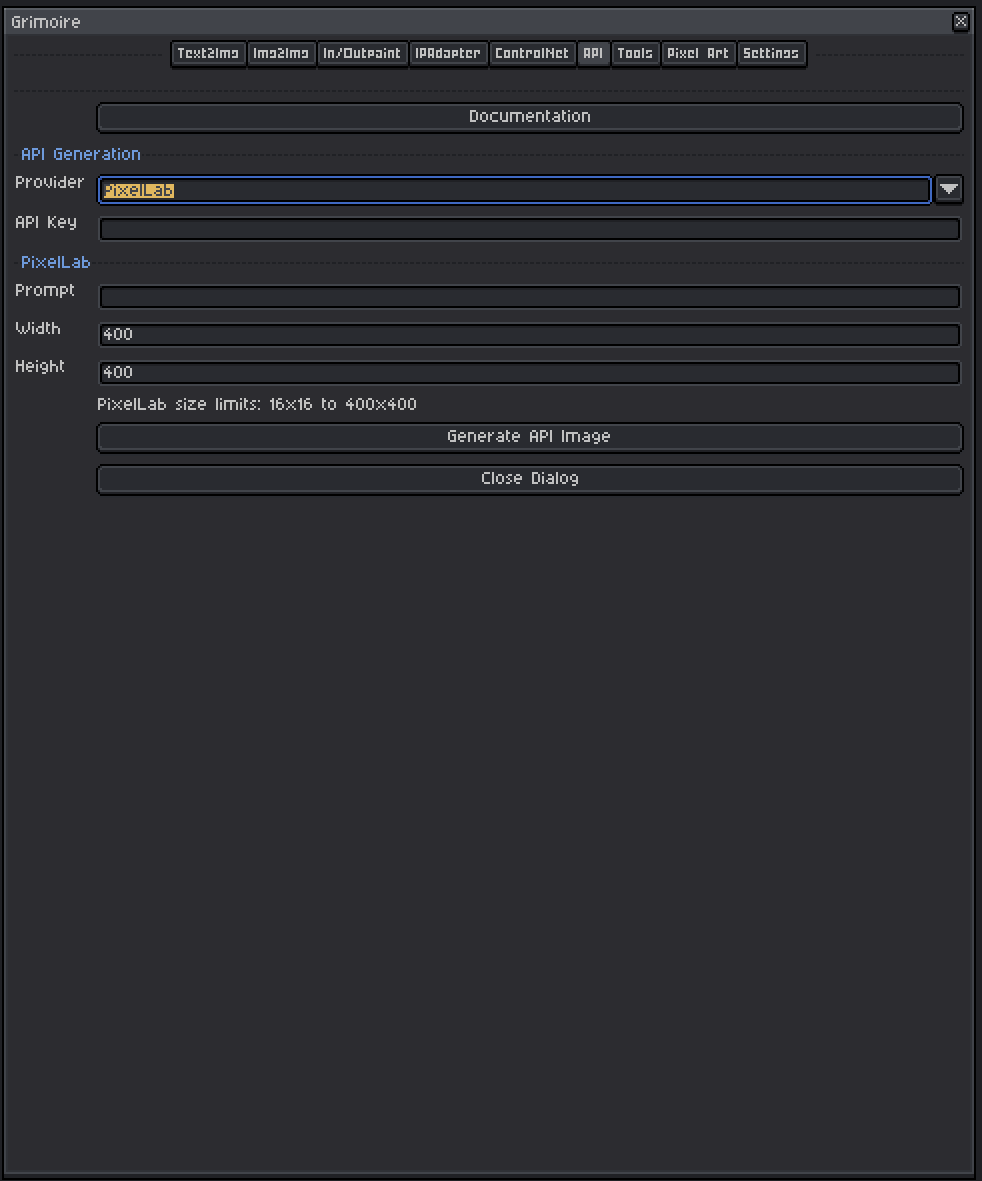
PixelLab is a cloud API purpose-built for pixel art generation. It is a good choice if you want high-quality pixel art without setting up local pixel art models.
API Key
Required. Obtain your key from the PixelLab website and paste it here.
Prompt
Describe the pixel art image you want. Be specific about:
- Subject and style (
knight character, side view, 16x16, RPG) - Color scheme or palette if relevant
- Any specific detail you need
Width and Height
The output dimensions in pixels. These are clamped between 16 and 400 pixels.
| Range | Notes |
|---|---|
| 16–64 | Small sprites — icons, tiles, characters |
| 64–128 | Medium sprites — character sheets, detailed icons |
| 128–256 | Larger scenes, tilesets |
| 256–400 | Maximum supported range |
Important: If you have an active Aseprite sprite open, its dimensions are used as the canvas reference. The output image is placed onto the canvas.
Canvas Size Behavior
- If an active sprite is open, its size is used as the target canvas size for the resulting image.
- If no sprite is open, the width and height you set are used directly.
Provider: Nano Banana
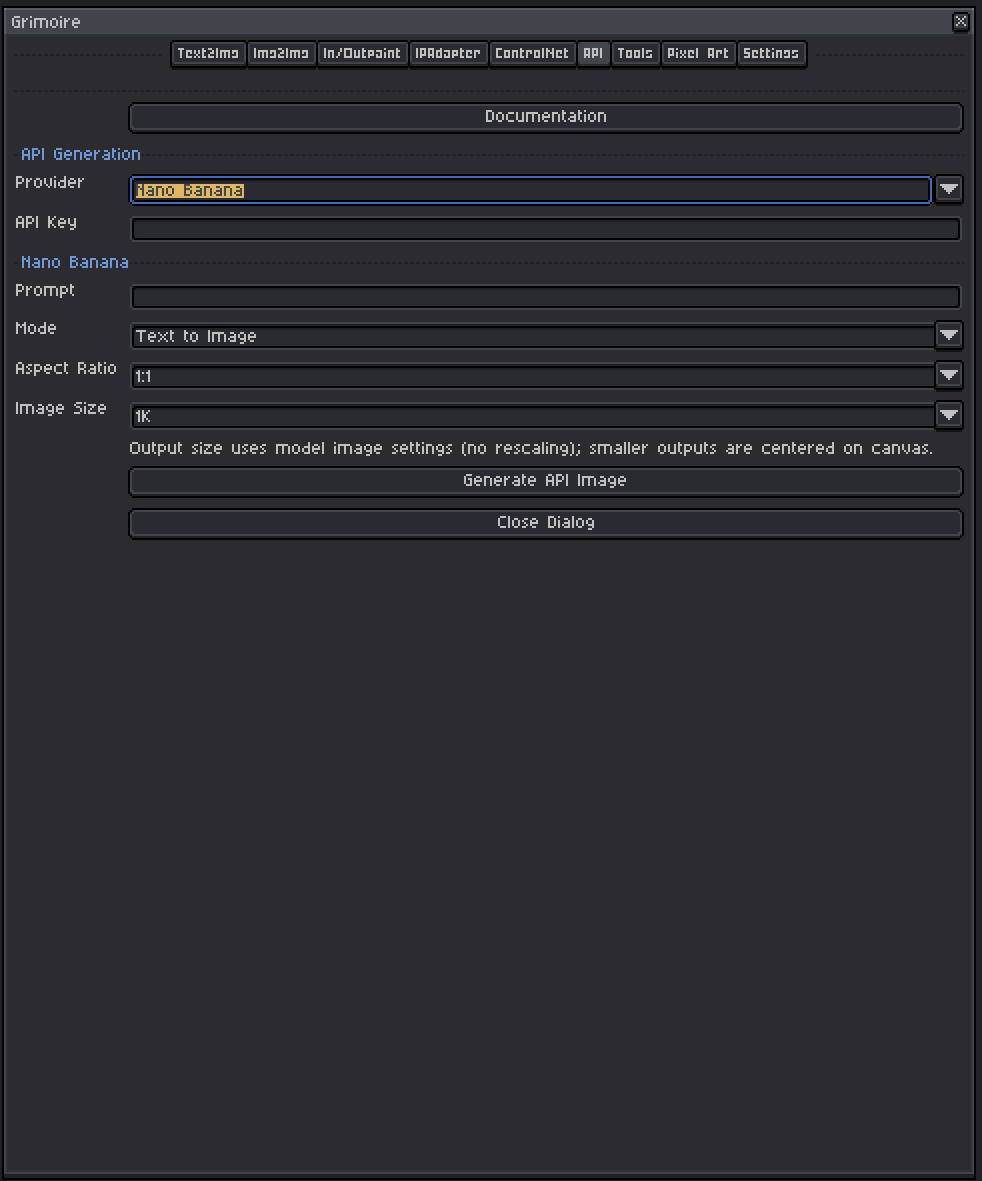
Nano Banana is a general-purpose image generation API. It supports multiple aspect ratios and resolutions and has a text-to-image and image-to-image mode.
API Key
Required. Obtain your key from Nano Banana and paste it here.
Mode
| Mode | What It Does |
|---|---|
| Text to Image | Generates a new image entirely from your prompt. No input image needed. |
| Text + Image to Image | Uses your active Aseprite sprite as a reference image alongside your prompt. |
Text + Image to Image requires an active sprite to be open. The sprite is sent to the API as the input image.
Prompt
Describe what you want to generate. Nano Banana accepts natural language descriptions.
Aspect Ratio
Selects the shape of the generated image. The model generates at this proportion regardless of your canvas size.
| Ratio | Good For |
|---|---|
| 1:1 | Square images, profile icons, tiles |
| 2:3 / 3:2 | Portrait or landscape characters |
| 3:4 / 4:3 | Standard portrait/landscape scenes |
| 4:5 / 5:4 | Social-media-friendly portrait/landscape |
| 9:16 / 16:9 | Mobile/widescreen scenes |
| 21:9 | Ultra-wide panoramic scenes |
Tip: If you have an active sprite open, the plugin automatically suggests the aspect ratio that most closely matches your sprite’s dimensions.
Image Size
Selects the output resolution tier.
| Setting | Approximate Resolution |
|---|---|
| 1K | ~1024px on the long edge |
| 2K | ~2048px on the long edge |
| 4K | ~4096px on the long edge |
Notes:
- Larger sizes take longer and may cost more API credits.
- The output is not rescaled to your canvas — if the API output is smaller than your canvas, it will be centered. If it is larger, it fills the canvas and the rest is cropped.
- For pixel art work,
1Kis usually sufficient — you can always downscale the result afterward.
Provider: OpenAI
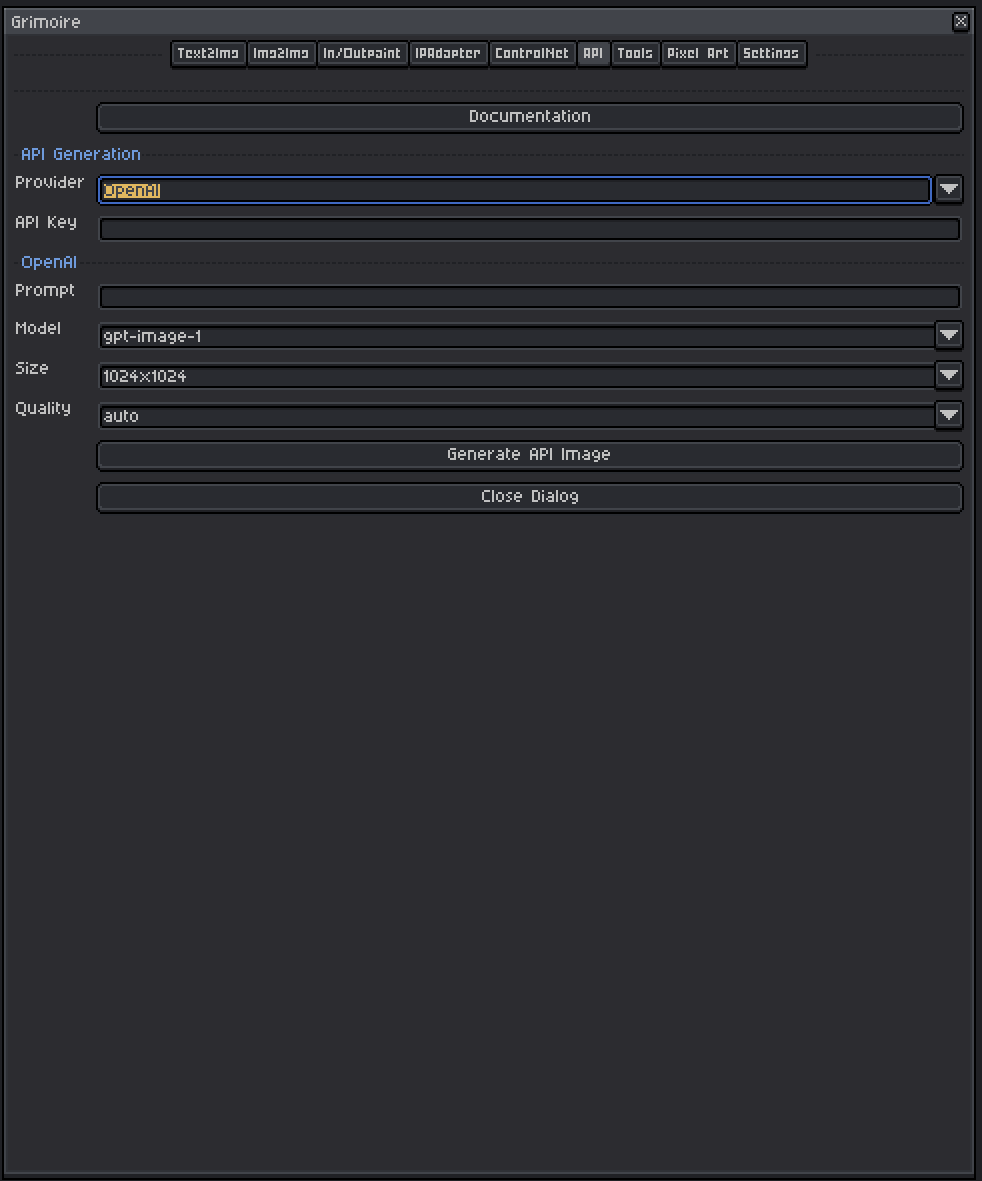
OpenAI provides image generation through their API. Requires an OpenAI API key.
API Key
Required. Obtain from the OpenAI platform.
Prompt
Describe the image you want to generate using natural language.
Model
Three models are available. Selecting a model updates the Size and Quality dropdowns automatically.
| Model | Available Sizes | Available Quality Options |
|---|---|---|
| gpt-image-1 | 1024×1024, 1536×1024, 1024×1536, auto | auto, low, medium, high |
| dall-e-3 | 1024×1024, 1024×1792, 1792×1024 | standard, hd |
| dall-e-2 | 256×256, 512×512, 1024×1024 | standard |
Size
Selects the output resolution. Options depend on the selected model (see table above).
Quality
Controls the generation quality / detail level. Options depend on the selected model (see table above).
Provider: Grok
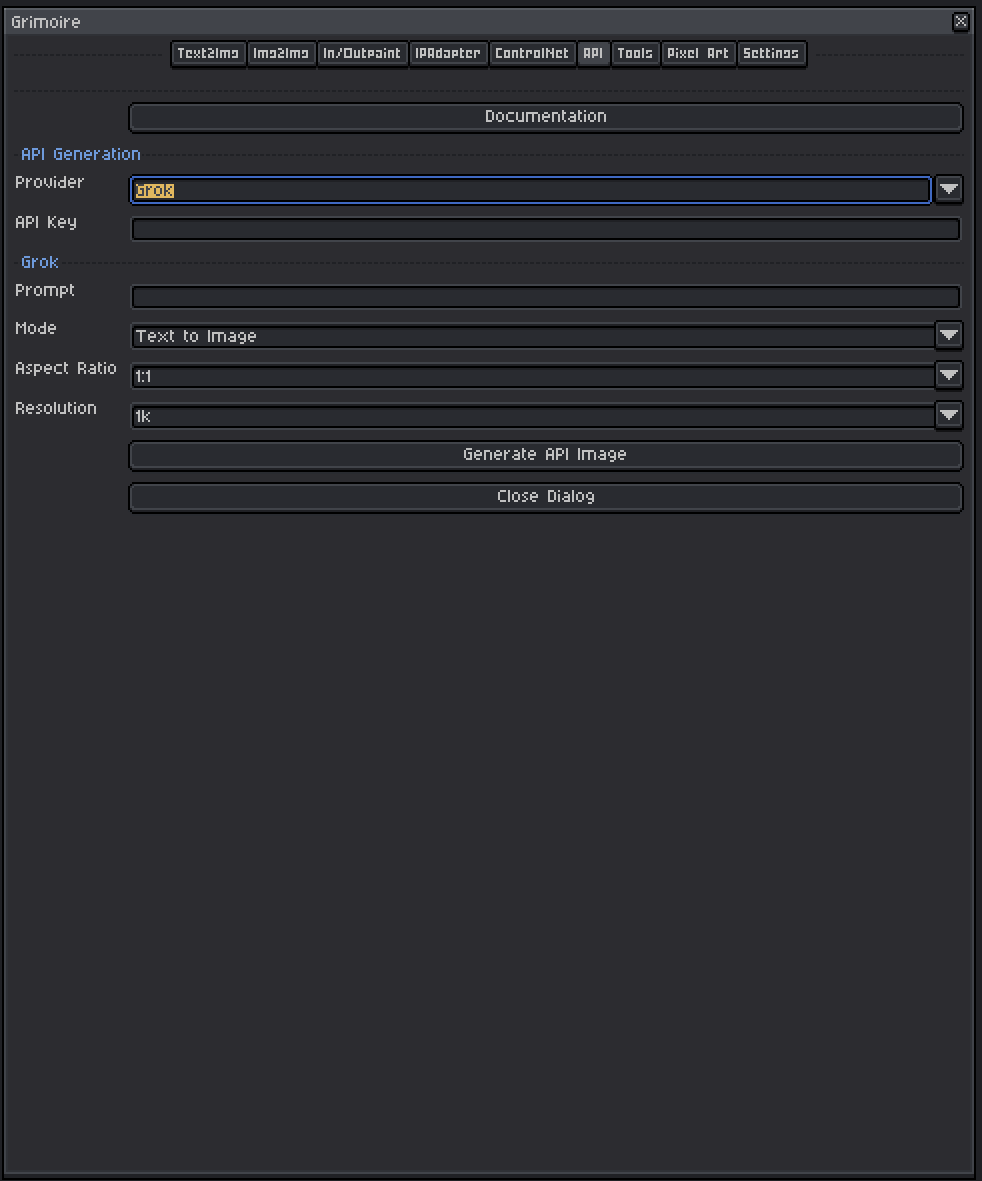
Grok provides image generation through xAI’s API. Requires a Grok/xAI API key.
API Key
Required. Obtain from the xAI platform.
Mode
| Mode | What It Does |
|---|---|
| Text to Image | Generates a new image from your prompt only. |
| Text + Image to Image | Uses your active Aseprite sprite as a reference image alongside the prompt. |
Text + Image to Image requires an active sprite to be open.
Prompt
Describe the image you want to generate using natural language.
Aspect Ratio
Selects the shape of the output image.
| Ratio | Notes |
|---|---|
| 1:1 | Square |
| 2:3 / 3:2 | Portrait / landscape |
| 3:4 / 4:3 | Standard portrait / landscape |
| 9:16 / 16:9 | Mobile / widescreen |
| 2:1 / 1:2 | Wide / tall |
| 20:9 / 9:20 | Ultra-wide / ultra-tall |
| auto | Let the model decide |
Resolution
| Setting | Approximate Output |
|---|---|
| 1k | ~1024px on the long edge |
| 2k | ~2048px on the long edge |
Provider: RetroDiffusion
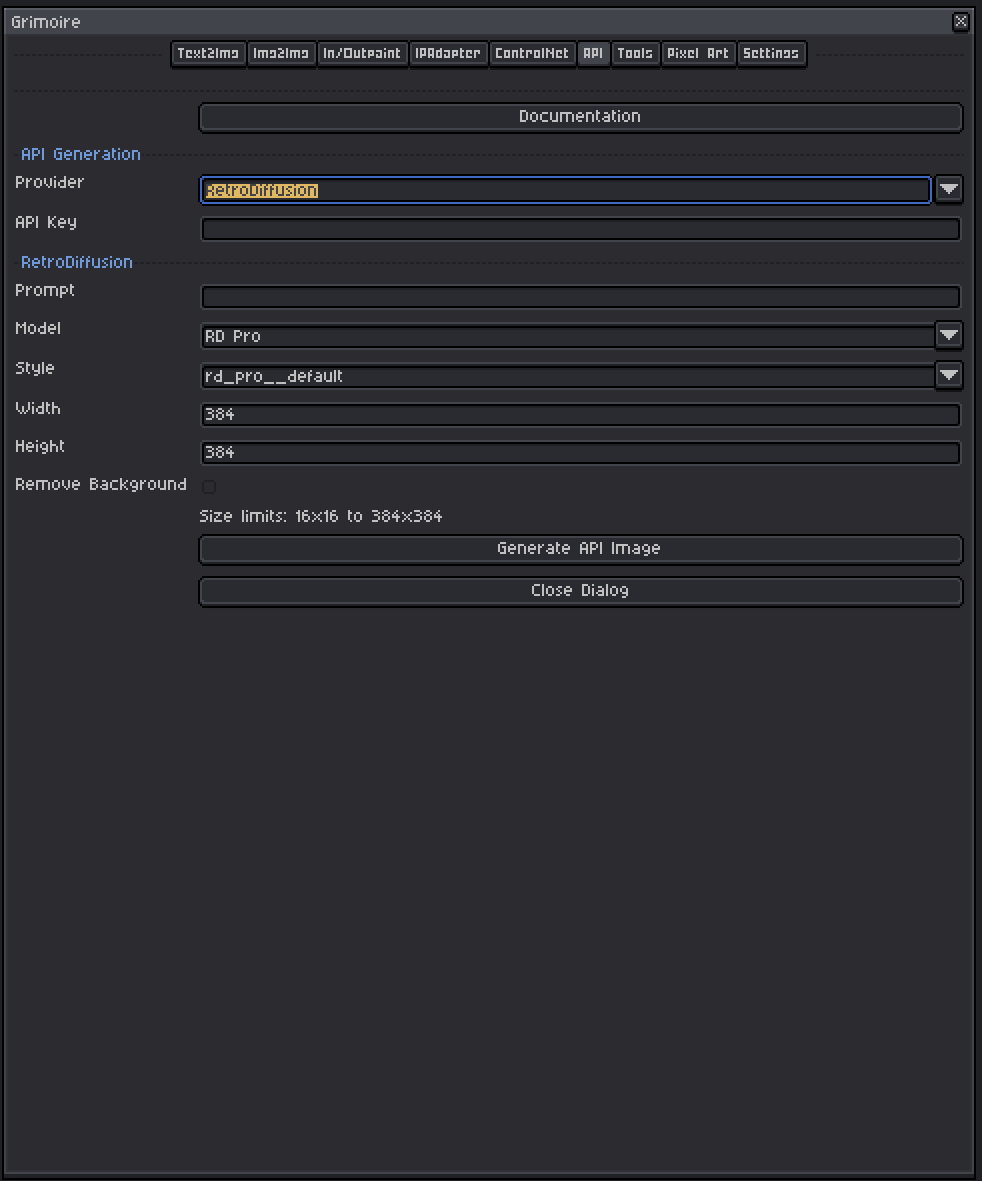
RetroDiffusion is a cloud API specialized for retro and pixel art generation at small resolutions.
API Key
Required. Obtain from the RetroDiffusion website.
Prompt
Describe the pixel art image you want. Works best with retro game art descriptions.
Model
Three models are available, each with a different set of style presets:
RD Pro — Highest quality, most style options:
rd_pro__default, rd_pro__painterly, rd_pro__fantasy, rd_pro__ui_panel, rd_pro__horror, rd_pro__scifi, rd_pro__simple, rd_pro__isometric, rd_pro__topdown, rd_pro__platformer, rd_pro__dungeon_map, rd_pro__edit, rd_pro__pixelate, rd_pro__spritesheet, rd_pro__typography, rd_pro__hexagonal_tiles, rd_pro__fps_weapon, rd_pro__inventory_items
RD Fast — Faster generation:
rd_fast__default, rd_fast__retro, rd_fast__simple, rd_fast__detailed, rd_fast__anime, rd_fast__game_asset, rd_fast__portrait, rd_fast__texture, rd_fast__ui, rd_fast__item_sheet, rd_fast__character_turnaround, rd_fast__1_bit, rd_fast__low_res, rd_fast__mc_item, rd_fast__mc_texture, rd_fast__no_style
RD Plus — Balanced quality and speed:
rd_plus__default, rd_plus__retro, rd_plus__watercolor, rd_plus__textured, rd_plus__cartoon, rd_plus__ui_element, rd_plus__item_sheet, rd_plus__character_turnaround, rd_plus__environment, rd_plus__topdown_map, rd_plus__topdown_asset, rd_plus__isometric, rd_plus__isometric_asset, rd_plus__classic, rd_plus__low_res, rd_plus__mc_item, rd_plus__mc_texture, rd_plus__topdown_item, rd_plus__skill_icon
Selecting a model updates the Style dropdown to show only the styles available for that model.
Width and Height
Output size in pixels. Clamped between 16 and 384. Default is 128×128, suitable for small pixel art sprites and tiles.
Tips for API Generation
- API generation is charged per request — experiment with small sizes first before doing large high-resolution runs.
- Settings persist between sessions — your API key and last-used options are remembered so you don’t have to re-enter them.
- Output is placed as a new layer/sprite in Aseprite — your original sprite is not overwritten.
- No local GPU required — API tabs work entirely independently of the local ComfyUI setup.