Aseprite Extension
Settings
Manage servers, ports, imports, and generation defaults.
What Is This?
The Settings tab handles server management, model installation, and plugin-level preferences. You typically only need to visit this tab during initial setup or when adding new models.
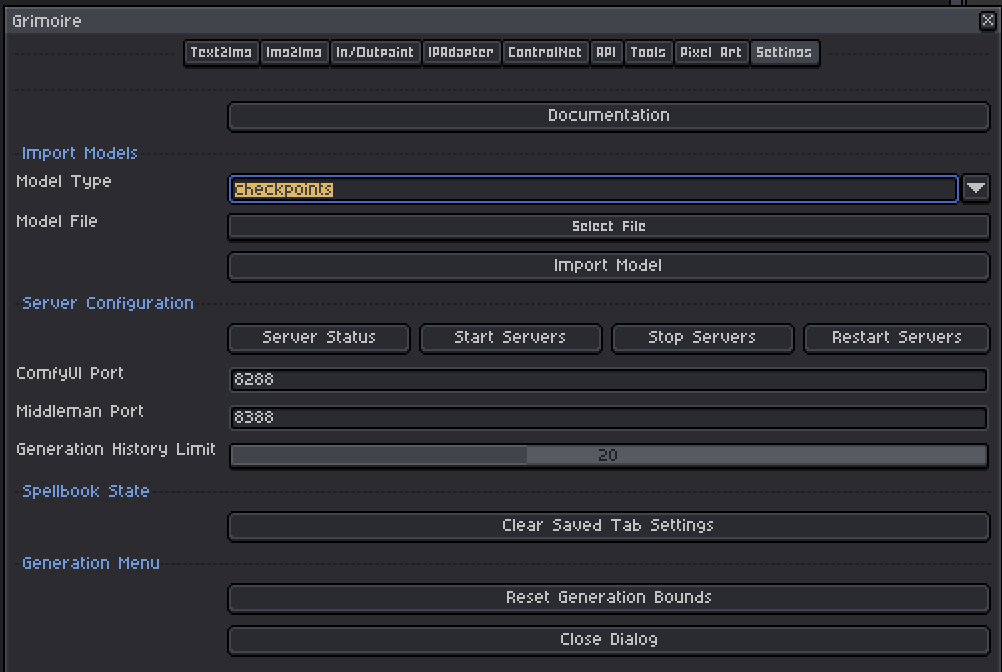
Server Configuration
The plugin runs two background processes to connect Aseprite with ComfyUI:
- ComfyUI — the AI inference server that actually runs the image generation.
- Middleman — a lightweight server that bridges Aseprite ↔ ComfyUI communication.
Both must be running before you can generate images.
Server Status
Shows whether the ComfyUI and middleman servers are currently running, starting, or stopped. Check this if generations are failing or the plugin is unresponsive.
Start Servers
Launches both the ComfyUI and middleman servers. Wait for the status to show as running before generating.
First launch: On the very first start, ComfyUI may take a few minutes to install its dependencies. Subsequent starts are faster.
Stop Servers
Gracefully shuts down both servers. Use this when you are done generating or need to free up GPU/VRAM.
Restart Servers
Stops then restarts both servers. Useful if:
- Servers become unresponsive.
- You have installed new ComfyUI nodes or models and need them to be picked up.
- Something is behaving unexpectedly.
ComfyUI Port
The network port ComfyUI listens on. Default: 8288.
Only change this if port 8288 is already in use by another application on your machine. Must match whatever port the middleman is configured to connect to.
Middleman Port
The network port the middleman server listens on. Default: 8388.
Only change this if port 8388 is already in use.
Import Models
Models are the files the AI uses. You need at least one checkpoint model to generate images. LoRAs, ControlNets, and other model types are optional but unlock additional features.
How to Import a Model
- Select the Model Type from the dropdown (this determines which subfolder the file goes into).
- Click the file picker and choose your
.safetensorsfile. - Click Import Model.
The file is copied into the appropriate ComfyUI models directory. After importing, restart the servers so ComfyUI picks up the new model.

Model Types Reference
Choose the type that matches what you are installing. This tells the plugin which folder to put the file into so ComfyUI can find it.
The five types most users will ever need:
| Type | What to put here |
|---|---|
| checkpoints | The main AI model files that power all generation. These are the largest files — typically 2–7 GB each. Every generation tab requires at least one. |
| loras | Small style or character add-on files, typically 50–200 MB. They nudge an existing checkpoint toward a specific look without replacing it. |
| clip_vision | Image encoder models used by the IPAdapter tab so it can “understand” your reference image. |
| ipadapter | The IPAdapter model files that let a reference image guide the style of your generation. |
| controlnet | ControlNet model files for structural guidance (pose, depth, edges, etc.). |
Less common types — only needed for specific advanced setups:
| Type | What it is |
|---|---|
| vae | A small file that converts between the model’s internal compressed format and actual image pixels. Most checkpoints include one already; only install separately if a model requires it. |
| upscale_models | Models that enlarge images while preserving or adding detail (e.g. Real-ESRGAN). |
| embeddings | Very small files that teach the model a new concept using a short trigger word you add to your prompt. |
| clip / text_encoders | Text understanding models. Only needed if you are using a split-format model (some newer architectures distribute this as a separate file). |
| unet | The core generation network. Only needed if you are using a split-format model. |
| hypernetworks | An older style-transfer format. Rarely used today — LoRAs have replaced them. |
Saved Tab State
The plugin saves your last-used settings for each generation tab automatically so they are restored when you reopen the dialog.
Clear Saved Tab Settings
Deletes all persisted tab states. Use this if:
- Tab settings seem corrupted or stuck.
- You want to reset everything back to fresh defaults.
- A workflow file is causing issues on load.
This does not delete your saved workflow files — only the auto-saved “last used” state.
Generation Menu
Reset Generation Bounds
Restores the generation dialog window to its default size and screen position.
Use this if:
- The dialog has been resized to be too small to read.
- The dialog has moved off-screen.
- The dialog size was saved incorrectly.
Default size: 500×500 pixels, positioned at the right side of the Aseprite window.
Generation History Limit
Controls how many automatically saved workflow snapshots are kept in history.
| Value | Effect |
|---|---|
| 1–5 | Only the most recent runs are kept. Minimal disk use. |
| 10–20 | Recommended range. A useful history depth without accumulating too many files. |
| 50 | Keeps the last 50 auto-saves. Takes more disk space over time. |
Older history files beyond the limit are automatically pruned when new generations are saved.